

Live Training: A Segmentation Model That Learns as You Label
 Ira Soldatova
Live Training trains a segmentation model while you label. After the first few images it predicts masks on each new image, so you fix masks, not draw them.
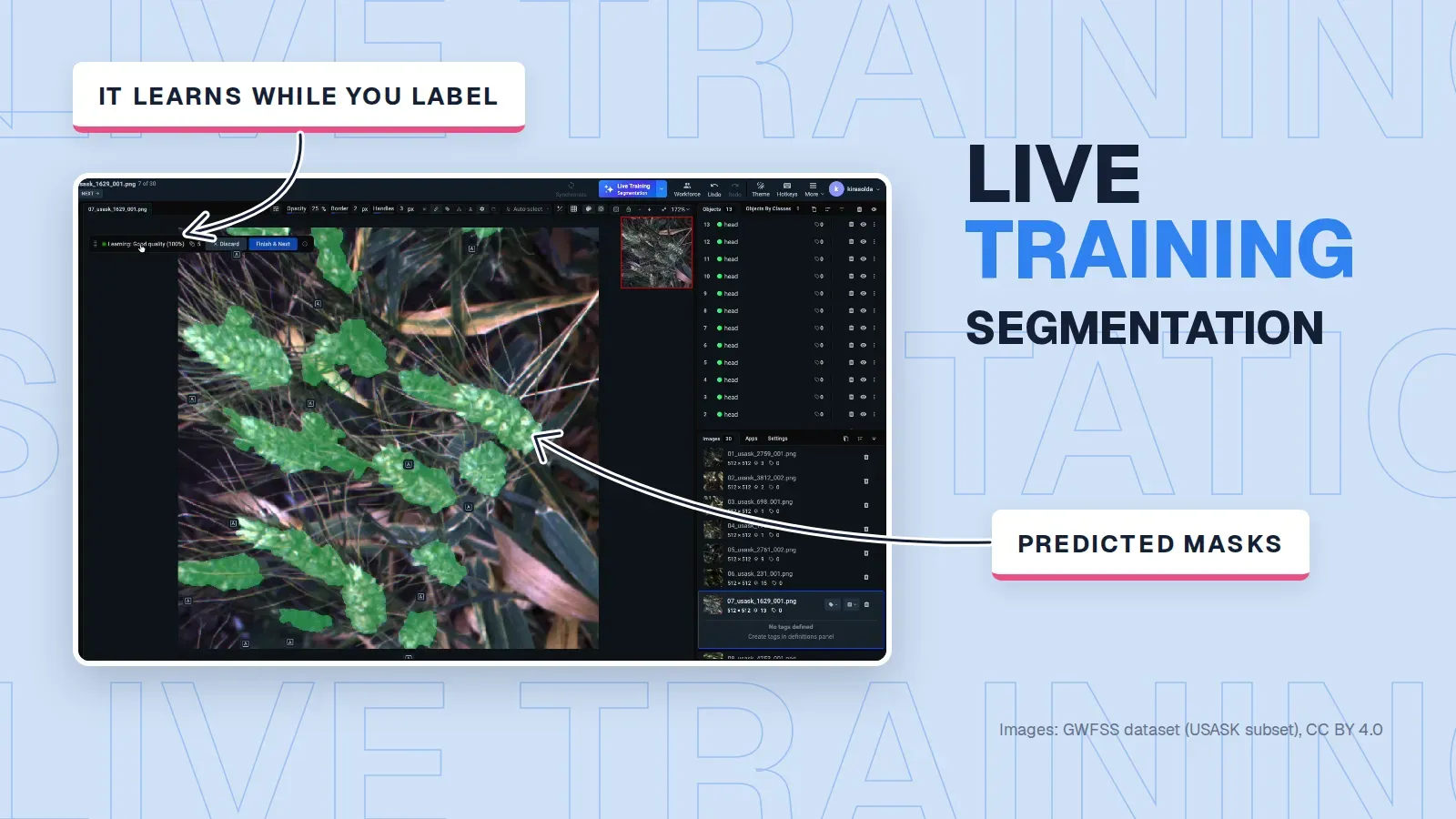
While you label, Live Training trains a segmentation model on your images. After the first few images it predicts the masks on each new one. You correct the masks instead of drawing them, and you finish with the labeled dataset and a trained model.
With Smart Tool, you prompt the model yourself on every image, and it does not learn from your corrections. Live Training – Segmentation proposes all the masks on an image at once, and it gets better with each image you submit.
Prefer the full reference? Live Training in the Supervisely docs covers setup, the prediction settings, the quality score and checkpoints.
What does Live Training do for segmentation?
You start it in the Image Labeling Toolbox: open the Live Training menu on the top panel, click Launch app and choose Live Training Segmentation. Then you label an image and click Finish & Next, which adds it to the training data. After two images the model starts training in the background. A few images later, it predicts masks on each image you open, marked A (Auto). You fix the wrong ones and submit the image. The model learns only from what you submit, so it also learns your rules: if you leave the awns out of wheat heads, its masks leave them out too.
When should you use Live Training for segmentation?
Live Training pays off on projects with many images of a similar scene, where the same kind of object has to be outlined again and again. It needs a few labeled images before it helps and gets better the more you label, so a project of a dozen images gains little from it.
| Situation | Better choice |
|---|---|
| Hundreds or thousands of similar images that need masks | Live Training – Segmentation: correct predicted masks instead of drawing them |
| A few images, or a few objects per project | Smart Tool: a box or a few clicks, no training |
| Boxes are enough, for example to count objects | Live Training Detection, which predicts bounding boxes |
| Objects are tiny and packed together, or you don't need them as separate objects | Live Training with Predict as instance masks off: one mask per class |
How it works on a real task: wheat heads in field images
Plant breeders count wheat heads and measure their size to compare varieties in field plots. A box is enough to count heads, but it also covers awns, leaves and the neighboring heads, so it cannot measure a head. That needs a mask. Masks are slow to draw here: heads overlap, leaves hide parts of them, and awns cross their outlines.
In our example, we label 30 top-down photos of a wheat field, the Wheat Head Segmentation sample project. Each wheat head gets its own mask of one class, head.
Label the first images with Smart Tool
With Smart Tool, draw a box around a head and it returns the head's mask. Add positive or negative points if the mask needs fixing, then press Space to finish that head, so every head is a separate object. Click Finish & Next after each image.
You don't have to box every head yourself. Select SAM 3 as the Smart Tool model and turn on reference bounding box prompts. Draw a box around one head, and SAM 3 finds the heads that look like it on the image and returns a mask for each. You then add the heads it missed and fix the wrong masks. That speeds up the first few images, the ones you label before Live Training starts predicting. The mode needs the Serve SAM 3 app running and does not work with SAM 2 or RITM.
How do you know the model is ready to help?
A floating panel above the image shows what Live Training is doing. Learning means the model is training on the images you submitted, and the number next to it counts them. Hover over the status to see whether the model is ready to predict. Once it is, the masks appear as soon as you open an image, each marked A.
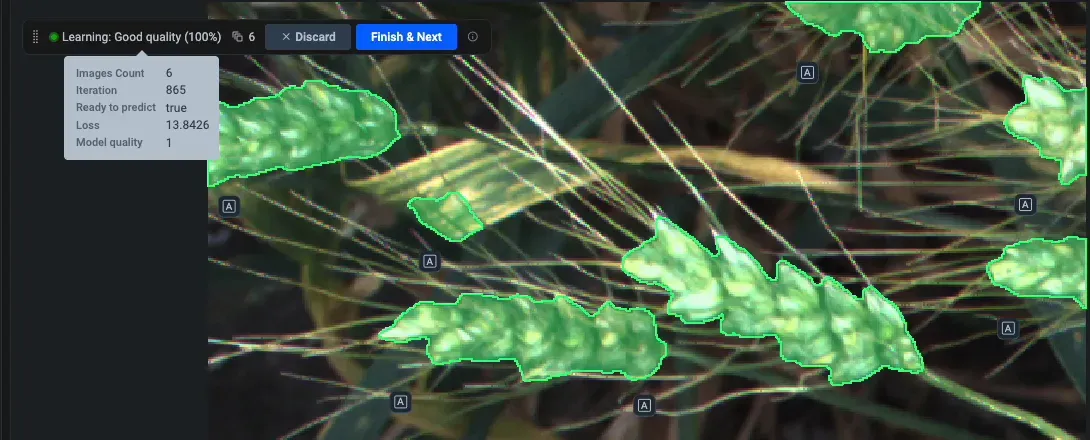 On the eighth image, after six submitted images, the model is ready and predicts the wheat heads
Early masks on wheat often include the awns or merge two touching heads. Fix them and submit the image, and the model learns from your fixed masks. If the masks on an image are not worth fixing, click Discard to remove them. Then click Predict for a new set, or label the image yourself.
Do you need instance masks or one mask per class?
By default, Predict as instance masks is on. Each separate region of a class becomes its own object, which is what you need to count heads or measure each one. Objects of the same class that touch come out as one mask, and you split them during review.
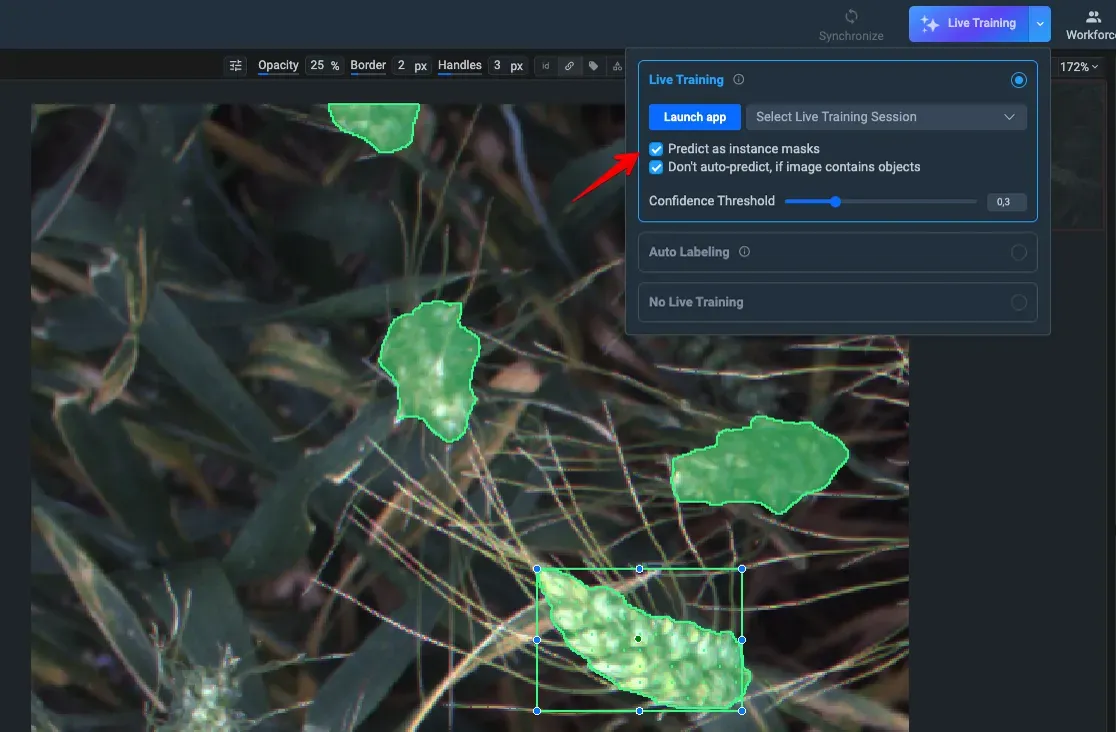 With Predict as instance masks on, each wheat head gets its own mask
Turn the setting off to get one mask per class on each image (semantic segmentation). Use it when you don't need separate objects, or when the objects are so small and dense that splitting them would cost more than it gives.
How much time does it save?
The Live Training technical report simulates a segmentation project of 10,000 images and one annotator. It assumes 3.5 minutes to label an image by hand and 30 seconds to review a good prediction.
| Approach | Working hours | Calendar days (6 h a day) |
|---|---|---|
| Manual labeling | 583 h | 97 |
| Live Training | 102 h | 17 |
Live Training finishes the same project about 5.7 times faster: in 102 hours instead of 583. It starts at manual speed. Each image you submit makes the next predictions better, and after about 40 working hours an image takes close to the 30-second review.
Want to see Live Training on your own images? Contact us for a demo. The full walkthrough of the wheat example is in the Wheat Head Segmentation use case in the docs.
Images: the Global Wheat Full Semantic Organ Segmentation (GWFSS) dataset, USASK subset, by Wang et al., Plant Phenomics, 2025, CC BY 4.0, shown in recordings of the Supervisely interface with masks added.
Frequently asked questions
What is Live Training for segmentation in Supervisely?
It is an app that fine-tunes a segmentation model in the background while you label masks in the Image Labeling Toolbox. After the first few submitted images it predicts masks on every new image, and you correct them instead of drawing them.
How many images do I need to label before predictions appear?
Training starts after two submitted images, and the model starts predicting masks within the first few. The predictions improve with every image you submit.
Does it return instance or semantic masks?
Instance masks by default: each separate region of a class is its own object, and touching objects of the same class come out as one mask that you split during review. Turn off Predict as instance masks to get one mask per class.
Which model does Live Training Segmentation train?
Mask2Former with a Swin-T backbone, initialized from weights pre-trained on ADE20K and fine-tuned on the masks you submit.
What do I get at the end besides the labeled dataset?
A trained model. Checkpoints are saved to Team Files during the session and when you stop it, and listed on the Experiments page. There, Continue resumes training on the same project, Finetune trains the saved model on another project, and you can download the weights.
What does Live Training Segmentation require?
A Supervisely Enterprise instance of version 6.17.25 or later with the Images Live Training license extension, and a GPU. Predict as instance masks needs version 6.18.0 or later.